Hero links are finally here
Finally. I've been eagerly waiting for the new way of sharing files in M365. As an MVP, I got a sneak peek already what feels ages ago, and I knew it was going to be good. I’m happy that I can finally share the joy of new ways to share with you. (And yes, this is the sort of thing that makes me happy 😅)
With Hero links, my happiness is quite simple: less effort to share a file, and less confusion about permissions. Sharing a file with someone should feel straightforward. Understanding who can open it should, too. The experience I've tried feels like a welcome step in that direction, although I still have questions to test.
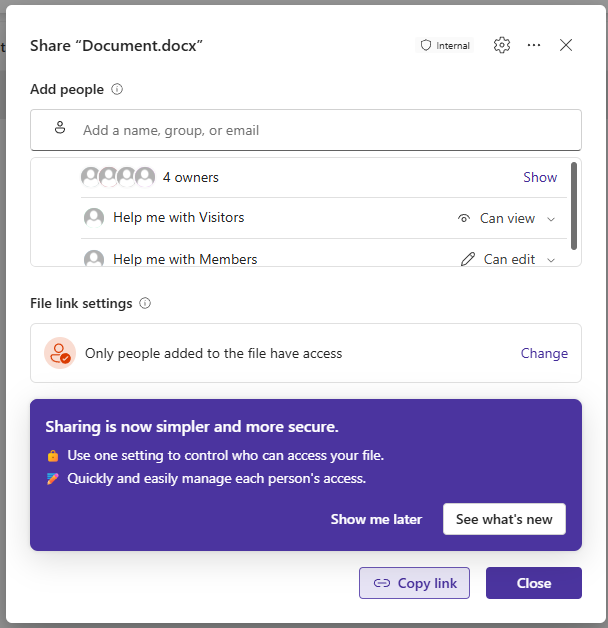
New sharing experience with the tutorial.
What's changing?
The new sharing experience is rolling out gradually, introducing one primary link, the Hero link, per file or folder that you use for sharing. And unlike previously, you can change the link type on the go, without needing to send a new link. Additional sharing links are still available when you need them, for example for the time-limited sharing described below.
Can I really copy the browser URL?
As long as there has been OneDrive and SharePoint online, I’ve been telling the users not to copy the link on the browser url. And they still do! So one of my favourite parts of this update is that now we can copy the file URL straight from the browser address bar and use it as the sharing link. Such a small thing, but it makes it so much easier for the users to understand.
It comes with a but, though ☝🏼 Copying that URL does not change the sharing settings, so if it’s in your OneDrive, the copied URL only doesn’t give rights yet. A link tells you where the file is; access determines whether you can use it. Before you share the link, check that the intended people have the right access. Easier copying doesn't remove that responsibility.
Different types of links are now more visible
In the previous UI, the sharing link type was behind the cogwheel (Share with anyone, people in the organisation, specific people and existing access), and not many people were aware of it. Most often, they ended up sharing whatever type of link was set as a default, and found themselves in a situation where especially people outside their own organisation couldn’t open the file. Now, it’s easier to see which groups or users have which kind of user rights to the file or folder, and it’s also easier to change them.
There is still more to discover behind the three dots
One of the most important features when sharing a file outside your organisation is to be able to set the expiration date for the link. I had to look around a bit to find the option behind the three-dot menu, but there it is. This will create a new link that will be under the Other sharing links.
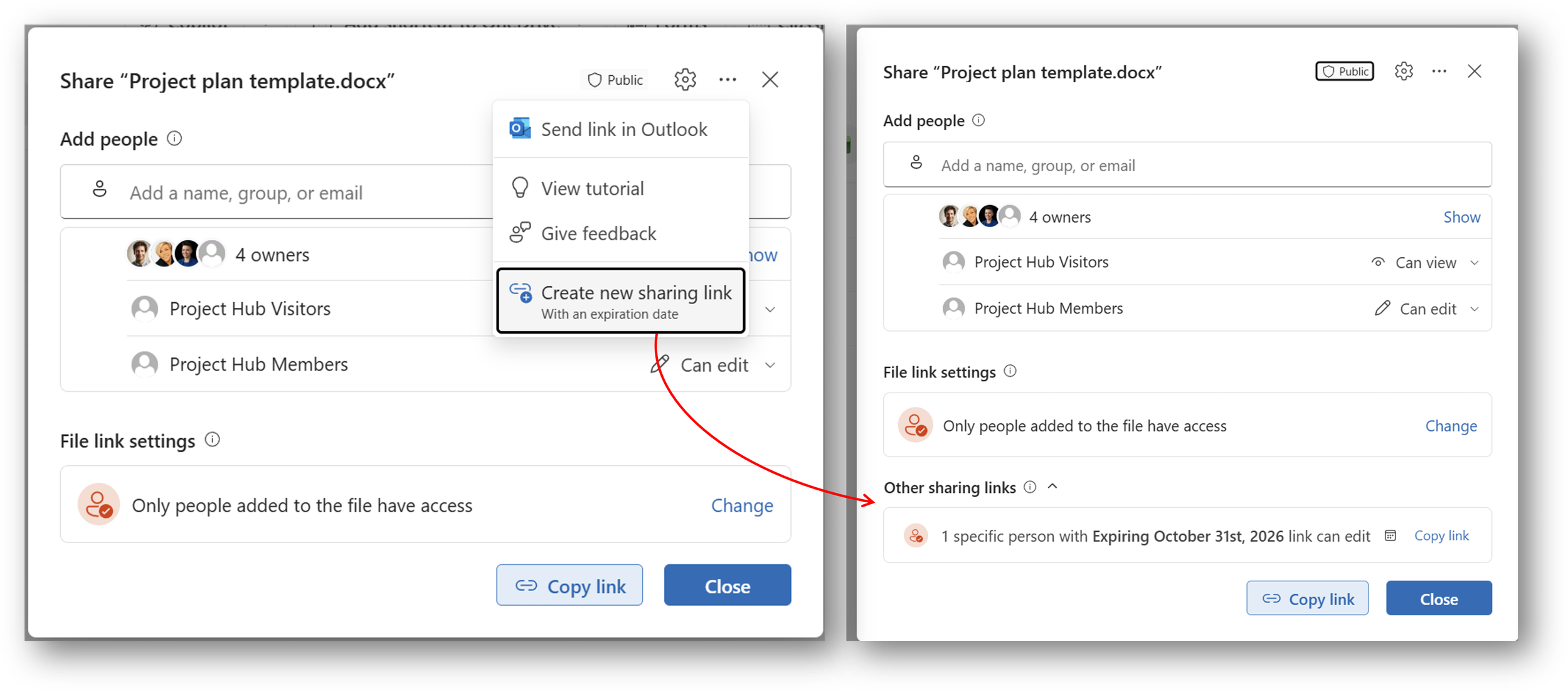
To create expiring links, click the three-dot menu.
Should we revisit the sharing instructions?
Yes, you should! If you look after M365, I'd use this as a reason to review your organisation-wide sharing rules and the instructions people still rely on. Compare those instructions with the experience in your own environment. Check the settings and test with the roles that matter to your organisation before telling people what the new choices mean.
And please look beyond the screenshots. Can an ordinary user explain who has access after following the guidance? Do they know what happens when they forward a link? An instruction can match the screen perfectly and still leave those questions unanswered. We want the users to understand what they are doing, don’t we?